Publishing a smartlink
Pool several offers into one rotating link, let publishers apply, and each approved partner gets their own tracking link that auto-rotates — and can auto-optimize — across the whole pool.
Updated 2026-06-17
A smartlink is a single link that sits in front of a pool of your campaigns. You publish it once; publishers apply to it like they would to a campaign. On approval, each publisher gets their own tracking link that rotates across every offer in the pool — by weight, geo, and device, or fully auto-optimized for the best payout — with no per-offer setup on their side.
This is how you run "send your traffic, we'll pick the best offer" without hand-building a link per partner per campaign.
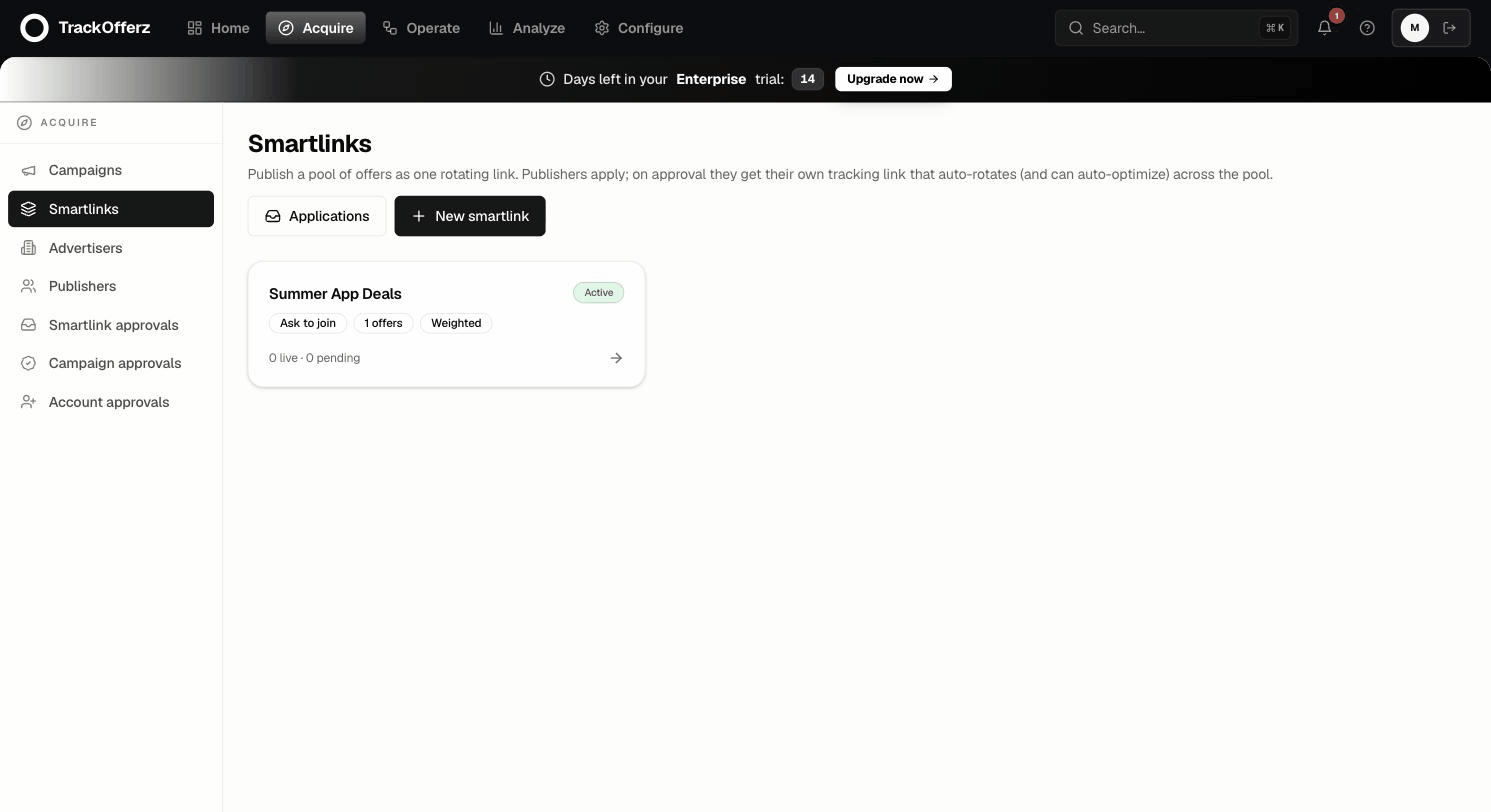
Everything lives under Campaigns → Smartlinks.
When to use a smartlink instead of a campaign
| Use a campaign when… | Use a smartlink when… |
|---|---|
| One offer, one landing page | Several offers you want to load-balance or A/B |
| You care which exact offer a partner runs | You want the network to pick the best-converting offer per click |
| Payout/terms differ per partner | One pooled experience, rotated by rules |
A smartlink doesn't replace your campaigns — it references them. The campaigns in the pool keep their own caps, payouts, and destinations.
Create a smartlink
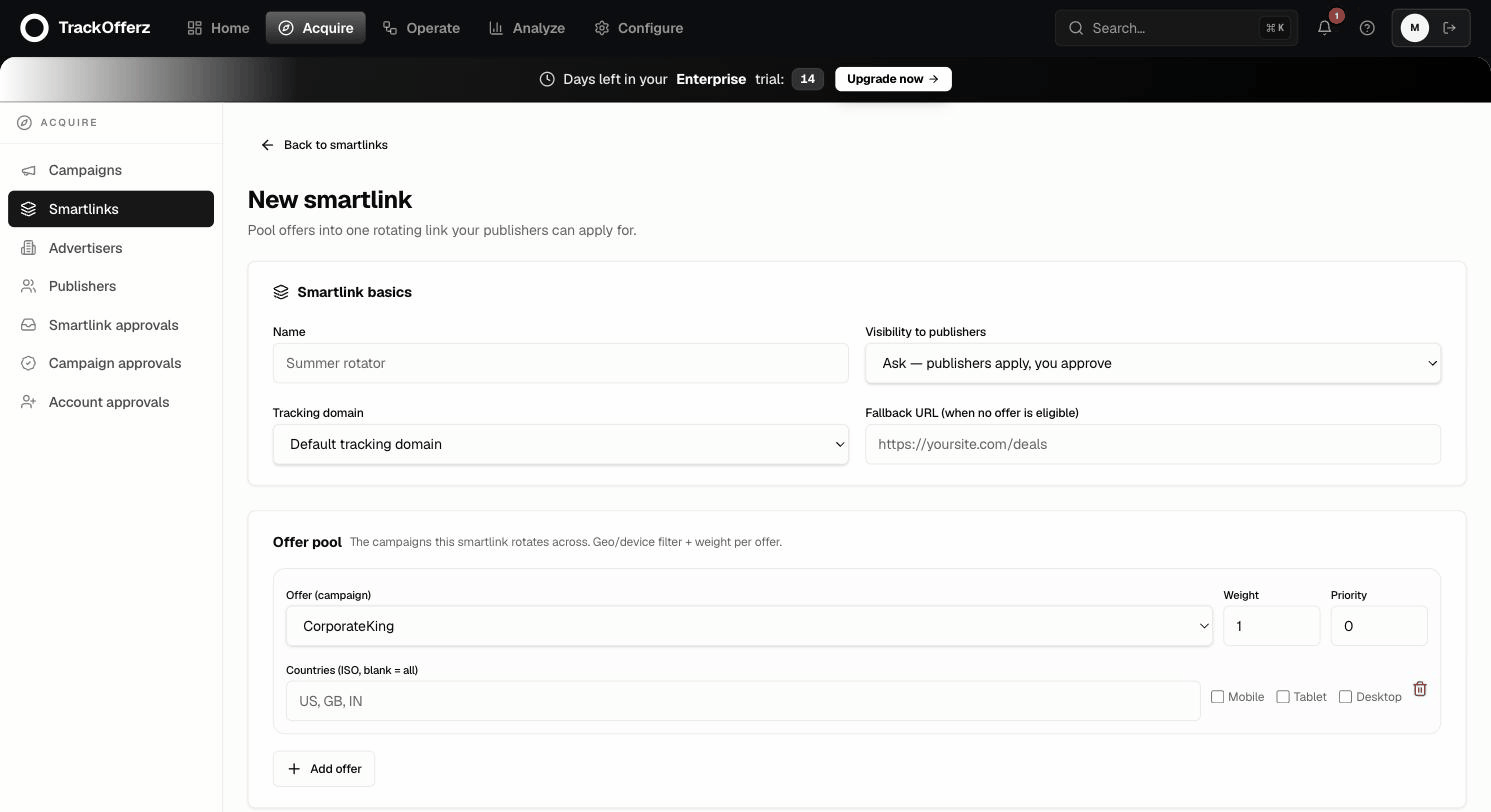
Click New smartlink and fill in the two sections.
Smartlink basics
- Name — internal label, e.g. Summer App Deals. Publishers see it in their marketplace.
- Visibility to publishers — controls who can join (see the table below).
- Tracking domain — the host the generated
/s/...links use. Leave on Default unless you run a branded domain. - Fallback URL — where a click goes when no offer in the pool is currently eligible (all paused, geo/device excluded, or caps hit). Set this so traffic is never wasted.
| Visibility | Behaviour |
|---|---|
| Ask | Publishers apply; you approve each one. Best default. |
| Public | Any active publisher gets their link instantly, no approval. |
| Private | Hidden from the marketplace; you add publishers deliberately. |
Offer pool
Add one row per campaign you want in the rotation. For each offer:
- Offer (campaign) — pick any campaign in your network.
- Weight — relative share of traffic in weighted mode (a weight-3 offer gets 3× the clicks of a weight-1 offer).
- Priority — higher priority offers are tried first; same-priority offers split by weight. Use it to keep a premium offer in front until it caps out.
- Countries — ISO codes (e.g.
US, GB, IN). Blank = all geos. - Devices — tick Mobile / Tablet / Desktop, or leave all unticked for any device.
Geo and device filters are evaluated per click. A click that matches no offer falls through to the next eligible one, and finally to your Fallback URL — so a tightly-targeted offer never strands traffic.
Rotation strategy
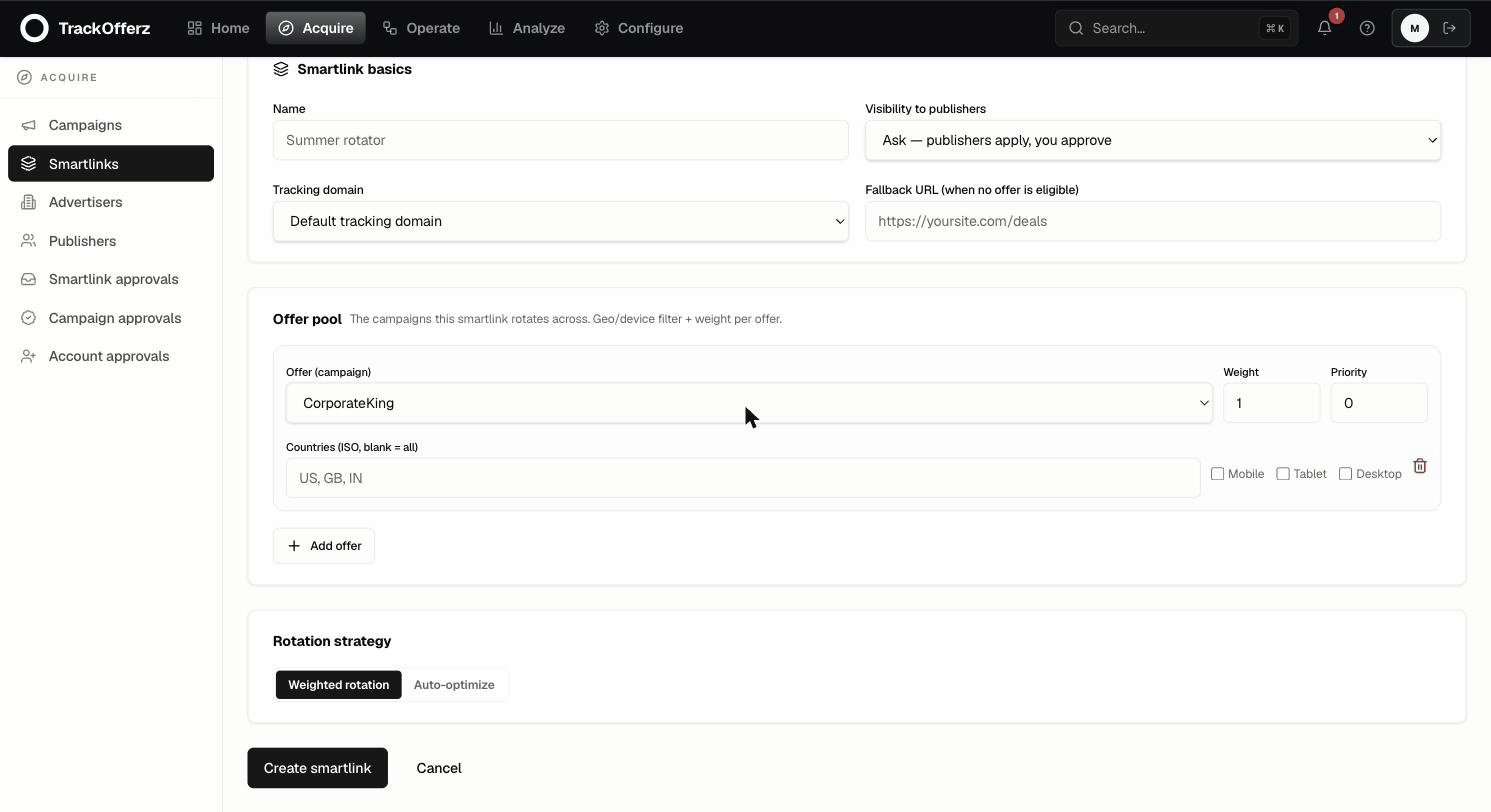
- Weighted rotation — splits traffic by the weights and priorities you set. Predictable and fully in your control.
- Auto-optimize — the edge learns which offer earns the most and shifts traffic toward it automatically. Choose what to optimize for — EPC, Profit, or Revenue — and an untouched clicks budget (how many clicks each offer gets to prove itself before optimization kicks in, default 50).
Auto-optimize only makes good decisions if your campaigns carry accurate payout (and, for Profit/Revenue, advertiser revenue) figures. Set those on the campaign first.
Click Create smartlink. It appears in the list as Active, showing its visibility, offer count, rotation mode, and a live X live · Y pending counter.
Approve publishers
With Ask visibility, applications land under Campaigns → Smartlink applications (and you get a notification). Each row shows who applied, to which smartlink, and when.
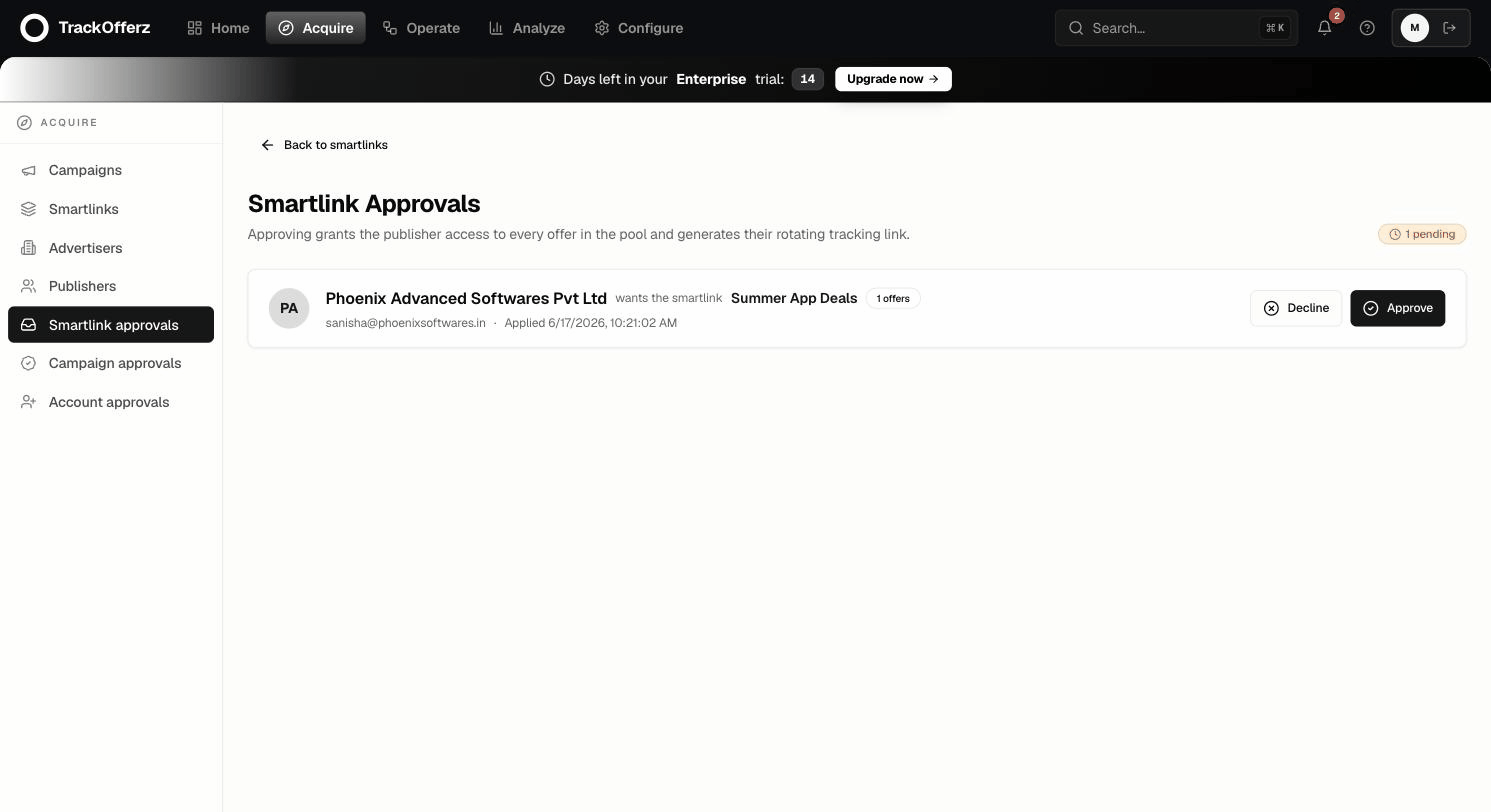
- Review the applicant — the same partner vetting you'd do for a campaign.
- Click Approve to grant access, or Decline to reject.
- On approval, the publisher's rotating
/s/...link is generated immediately and they're notified.
Approving a smartlink grants the publisher access to every offer in the pool, and auto-approves them on each of those campaigns (minting their tracking keys). Only pool campaigns you're comfortable opening to that partner.
Edit, pause, delete
Open any smartlink to see its pool, fallback, and the publishers on it.
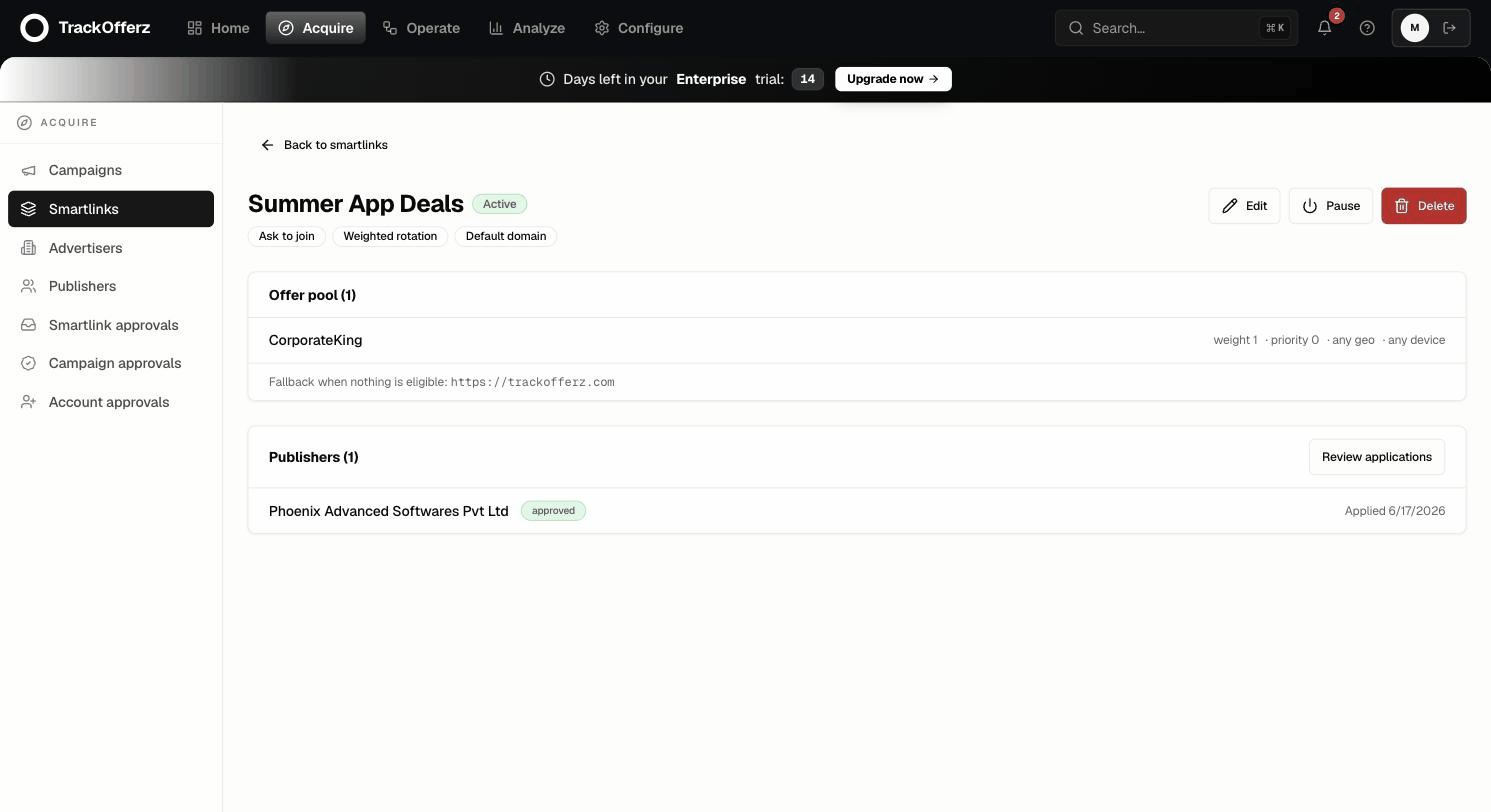
- Edit — change the pool, weights, visibility, or rotation. Every approved publisher's link is re-built automatically against the new pool — their link (and the code they've already pasted into ad platforms) stays the same, only what it rotates to changes.
- Pause — instantly stops every publisher's link from serving (it falls back) without deleting anything. Un-pause to resume.
- Delete — removes the smartlink and every publisher's materialized link. Their tracking links stop working. Use pause if you only need a temporary stop.
How it reaches the edge
Approving a publisher materializes a real short link behind the scenes, so it rides the exact same fast-redirect path as every other link in your network — typically a sub-50ms 302. There's nothing extra to deploy or warm up; a new or edited smartlink is live within seconds.
What the publisher sees
Once approved, the partner copies one link from Offers → Smartlinks and promotes it. Every click rotates across your pool and is attributed to them automatically — see Applying to a smartlink for their side.
Next: make sure the pooled campaigns are sound — create a campaign and verify your tracking.